Coach a Fighter How to Redeem Codes
From tutorial completion to claiming Cash and rerolls without typos.
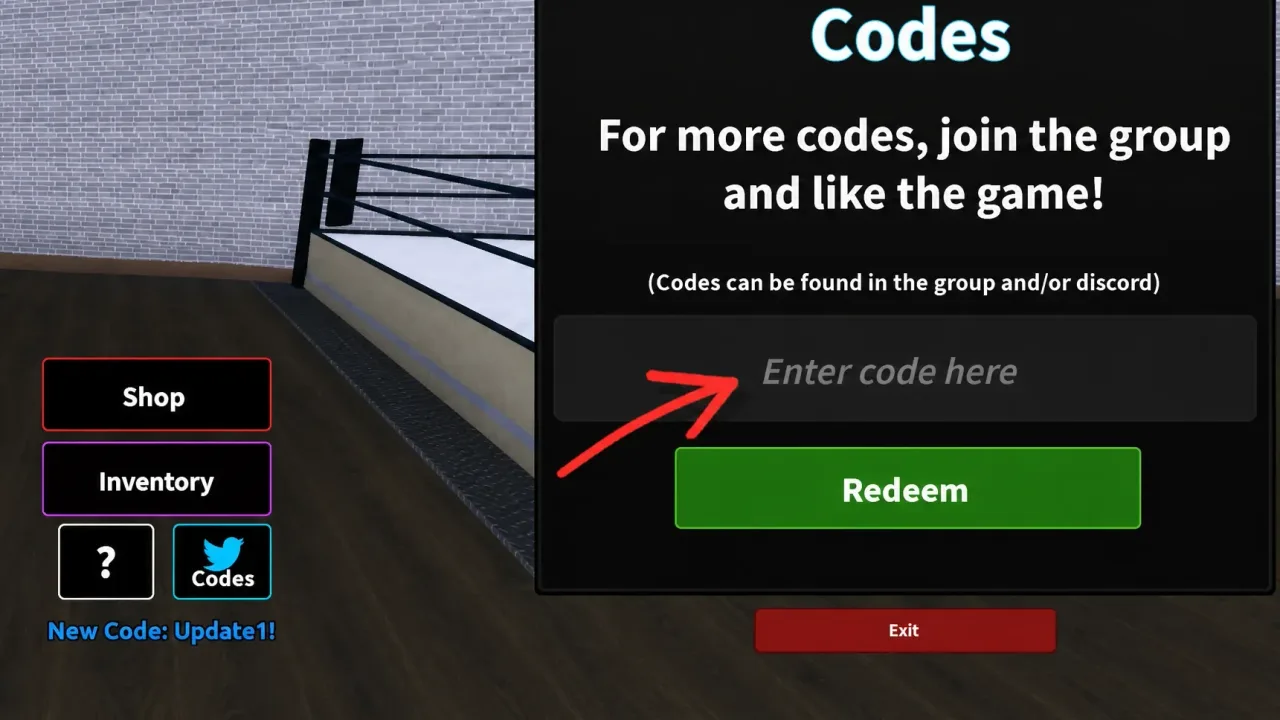
Redeeming promo codes in Coach a Fighter takes less than a minute once you know where the menu hides. LockLoaded gates redemption behind the intro tutorial, so brand-new players cannot claim Update1! or Release! until they learn basic gym flow. This guide walks through every step, lists the most common error messages, and links back to the live code list on the Codes hub.
Before you start
Make sure you are playing the official experience at Roblox place 111517697993641. Third-party “code generator” sites are scams —real codes come only from LockLoaded announcements and verified community posts tied to updates.
You also need a Roblox account logged in on the same profile where you want the rewards. Codes apply Cash, Real rerolls, and Legend rerolls directly to that save.
Step 1: Finish the tutorial
The Codes button does not appear until the tutorial sequence completes. Follow the on-screen prompts: hire or assign your first fighter, run initial training, and finish any mandatory gym introductions. If you skipped dialogue too fast, open the quest or objective tracker and clear remaining tutorial flags.
Players who join a friend’s server mid-progress still need their own tutorial done on their account. Being carried through fights does not unlock redemption early.
Step 2: Open the Codes menu
After the tutorial, look at the bottom-right corner of the HUD. Tap or click the Codes button. A text field opens where you paste the promo string.
Do not type codes into Roblox general chat or the in-experience command bar unless the game explicitly adds a slash command —Early Beta uses the dedicated Codes UI only.
Step 3: Paste the code exactly
Active strings include punctuation:
- Update1! —25,000 Cash, 10 Real Rerolls, 5 Legend Rerolls
- Release! —25,000 Cash, 10 Real Rerolls, 1 Legend Reroll
Copy from the Codes hub table to avoid typos. Capital U and R, the numeral 1 in Update1!, and the trailing ! are all required. Mobile players should paste from clipboard instead of typing on a small keyboard.
Step 4: Confirm and check inventory
Submit the code and wait for a success banner. Cash should rise immediately; rerolls appear in the fighter or gacha menus depending on how LockLoaded surfaces them in the current build. If nothing changes, re-open the menu once —UI lag happens on busy servers.
Troubleshooting
Invalid code usually means a typo, an expired string, or redemption before tutorial completion. Already redeemed means that account claimed it. Cannot redeem on a fresh alt may mean the tutorial is incomplete.
If a code fails for everyone after a patch, check the Updates hub —developers sometimes retire old strings when Update1!-style replacements ship.
After redeeming
Spend Cash deliberately: early bets and gym upgrades multiply long-term income faster than hoarding. Read Cash and rerolls for priority order, then Getting started to slot rewards into your daily loop.
Related pages
- Codes hub —active and expired code table
- Cash and rerolls —how rewards translate into roster power
- Getting started —tutorial overlap and first-hour goals
Mobile vs desktop redemption
Mobile Roblox players should long-press to paste from clipboard — manual typing causes frequent Update1! failures when the numeral 1 becomes a lowercase l. Desktop players can copy directly from the Codes hub table. Both platforms require the same tutorial completion gate.
If the Codes panel closes instantly, rejoin the experience. Early Beta hotfixes occasionally reset UI state without wiping redeemed rewards.
Alt accounts and family devices
Each Roblox profile claims codes independently. Family-shared devices should log into the correct account before redeeming — rewards do not transfer between profiles. Alts can duplicate Release! Cash for experiments, but training time repeats per account.
Security reminder
Never share account passwords with sites promising to redeem codes for you. Legitimate redemption happens only inside Coach a Fighter after the tutorial.
Mobile vs desktop redemption
Mobile Roblox players should long-press to paste from clipboard — manual typing causes frequent Update1! failures when the numeral 1 becomes a lowercase l. Desktop players can copy directly from the Codes hub table. Both platforms require the same tutorial completion gate.
If the Codes panel closes instantly, rejoin the experience. Early Beta hotfixes occasionally reset UI state without wiping redeemed rewards.
Alt accounts and family devices
Each Roblox profile claims codes independently. Family-shared devices should log into the correct account before redeeming — rewards do not transfer between profiles. Alts can duplicate Release! Cash for experiments, but training time repeats per account.
Security reminder
Never share account passwords with sites promising to redeem codes for you. Legitimate redemption happens only inside Coach a Fighter after the tutorial.
Redemption checklist you can reuse
Before every code session, run this mental list: tutorial finished, Codes button visible at the bottom-right, clipboard cleared of extra spaces, exclamation mark present, and enough attention to read the success toast. If Cash or Reroll counters do not move, leave the menu, rejoin the experience once, and try again after confirming the string is still listed on the Codes hub.
Codes versus chat scams
Never type Coach a Fighter codes into Roblox chat because strangers ask you to. Promo redemption only happens inside the dedicated Codes UI. Anyone asking you to verify a code on an external login page is running a phishing attempt. Bookmark this wiki and official LockLoaded channels instead of trusting random private messages.
After a successful redeem
Open your wallet counts, note the Cash jump, then decide whether to train, upgrade the gym, or sign fighters. The worst habit is redeeming Update1! and Release! and immediately gambling every Coin on an untrained bet. Route rewards through Cash and rerolls thinking, then the Training planner.
Frequently Asked Questions
Quick answers to the most common Coach a Fighter questions.
Where is the Codes button in Coach a Fighter?
Bottom-right of the screen after you finish the tutorial. It is a dedicated UI button, not the Roblox chat window.
Do I need to finish the tutorial to redeem codes?
Yes. LockLoaded hides the Codes menu until the intro tutorial is complete on your account.
Why does Update1! not work when I type update1?
Codes are case-sensitive and must include the exclamation mark. Use Update1! exactly as published.
Can I redeem the same code twice?
No. Each code can be claimed once per Roblox account. A second attempt shows an already redeemed message.
Do codes work on private servers?
Yes, as long as you are in the official Coach a Fighter experience and meet tutorial requirements. Rewards apply to your account, not the server instance.